How Students Access and Use MCQs / Quizzes
Students can only take quizzes for courses they have purchased / enrolled in. Here is the exact click-path from login to certificate.
Student
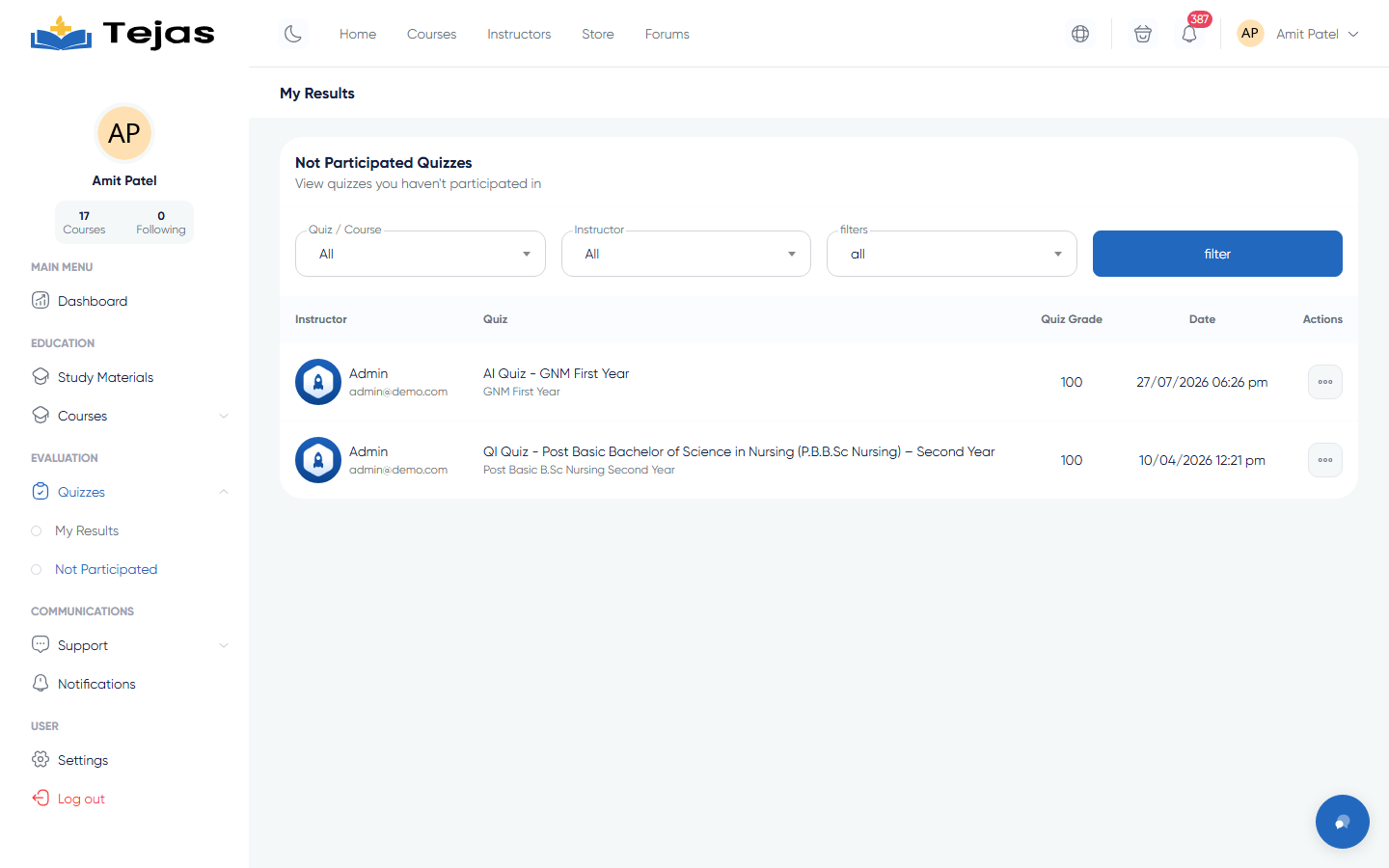
1. Open Your Pending Quizzes
- Log in at /login with your email and password.
- Click your avatar (top-right) → Dashboard.
- In the left sidebar, click Quizzes to expand it, then click Not Participated.
- Every active quiz from your purchased courses that you haven't attempted is listed here — click Start on the one you want.
Shortcuts: the dashboard "My Quizzes" and "Quiz of the Day" widgets, and the Quiz button on each Courses → My Purchases card, lead to the same place.
2. Take the Quiz
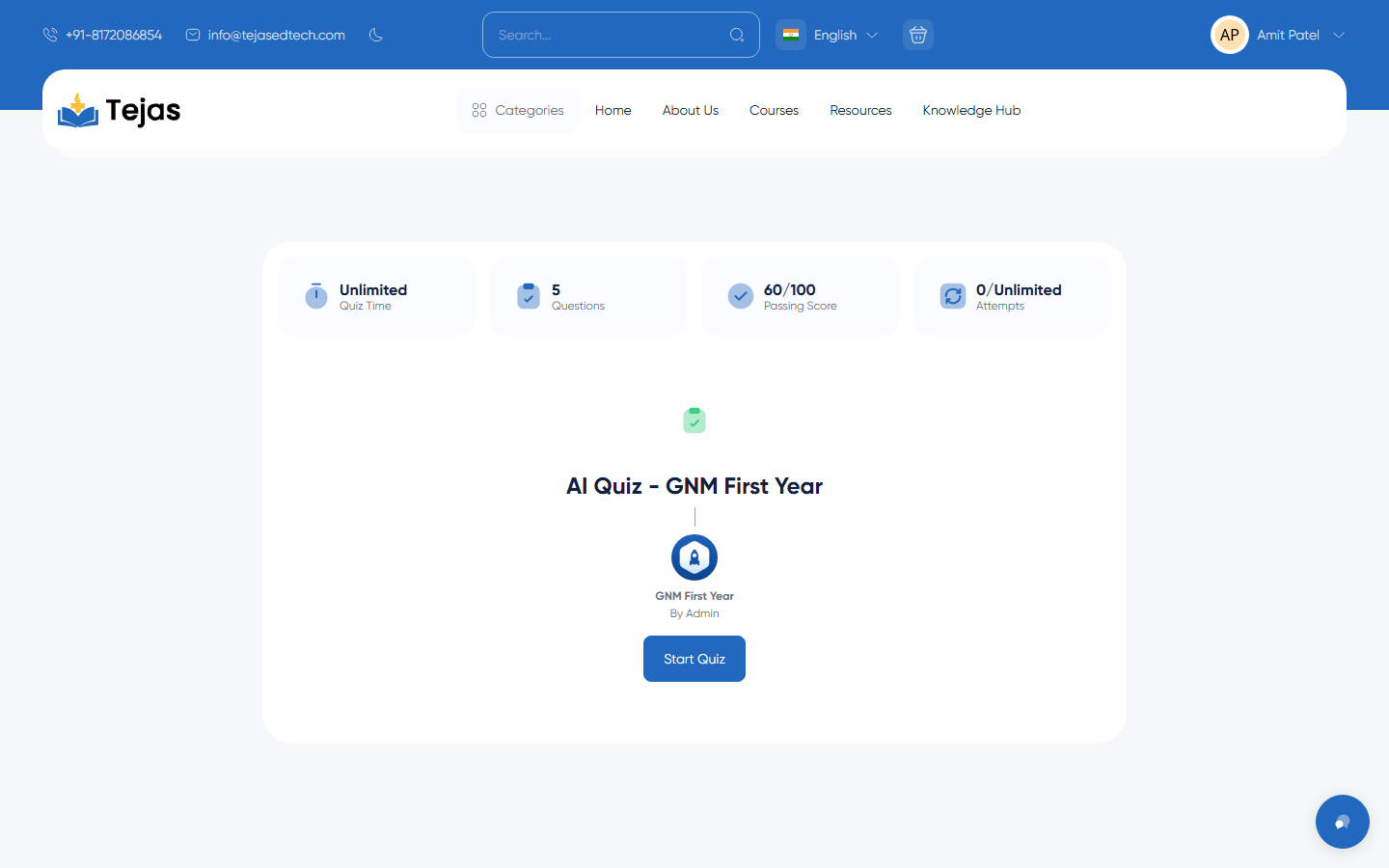
- The overview page opens first — check the Quiz Time, number of Questions, Passing Score, and your remaining Attempts.
- Click Start Quiz.
- Answer each question. If the quiz is timed, watch the countdown timer at the top.
- Click Submit when done.
3. Read Your Result
After submitting you land on the result page. Depending on your score:
- Passed — click Download Certificate (when the quiz includes one) or View Answers to review your responses.
- Failed — click Try Again (if attempts remain) to return to the overview and restart.
- Waiting — the quiz had written (descriptive) answers; your grade appears after the instructor reviews them.
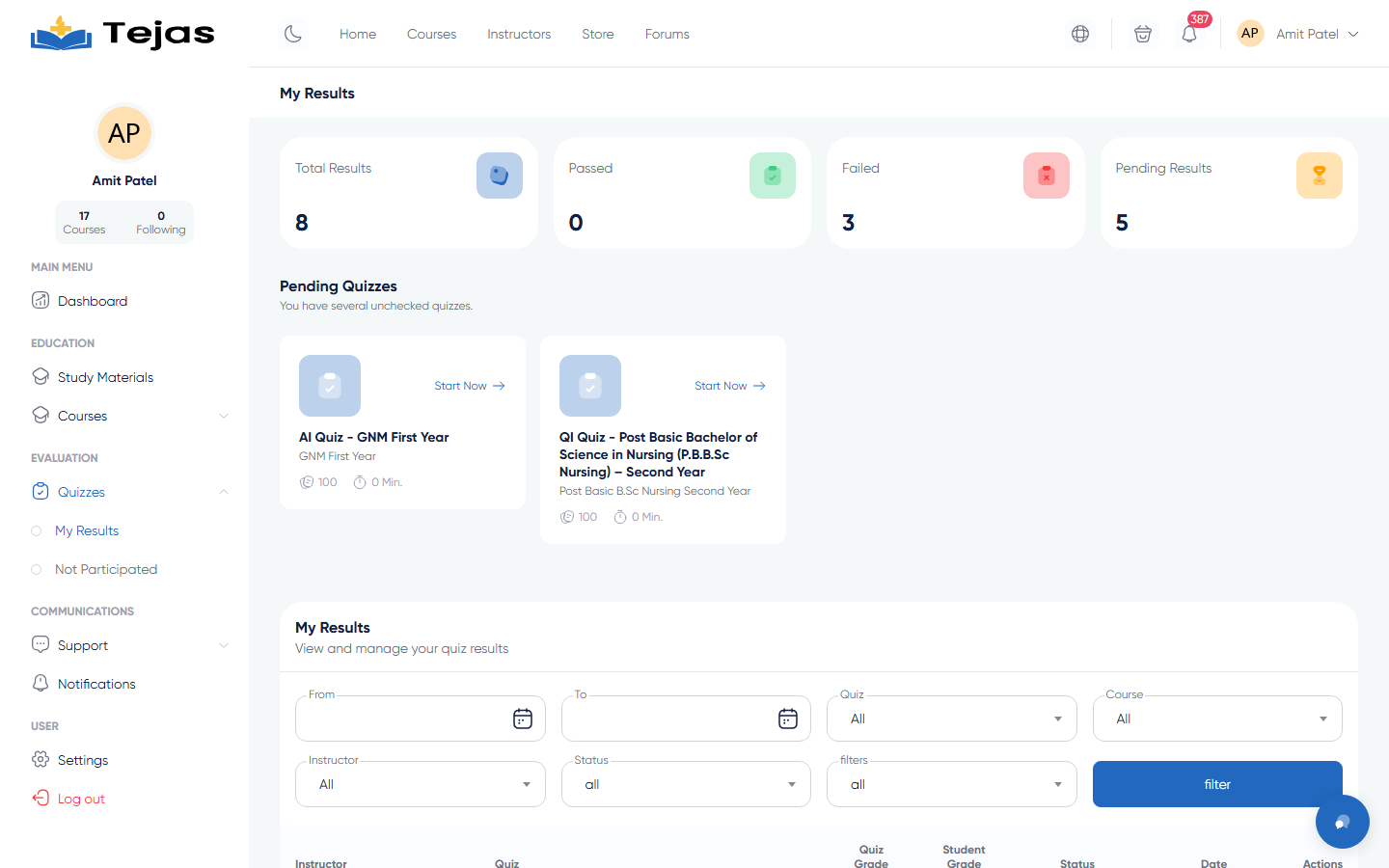
4. Find Past Results and Certificates Later
- Sidebar → Quizzes → My Results — all attempts with grades; failed rows have a Try Again link.
- Sidebar → Certificates → My Achievements — click Show on any earned certificate to download it.
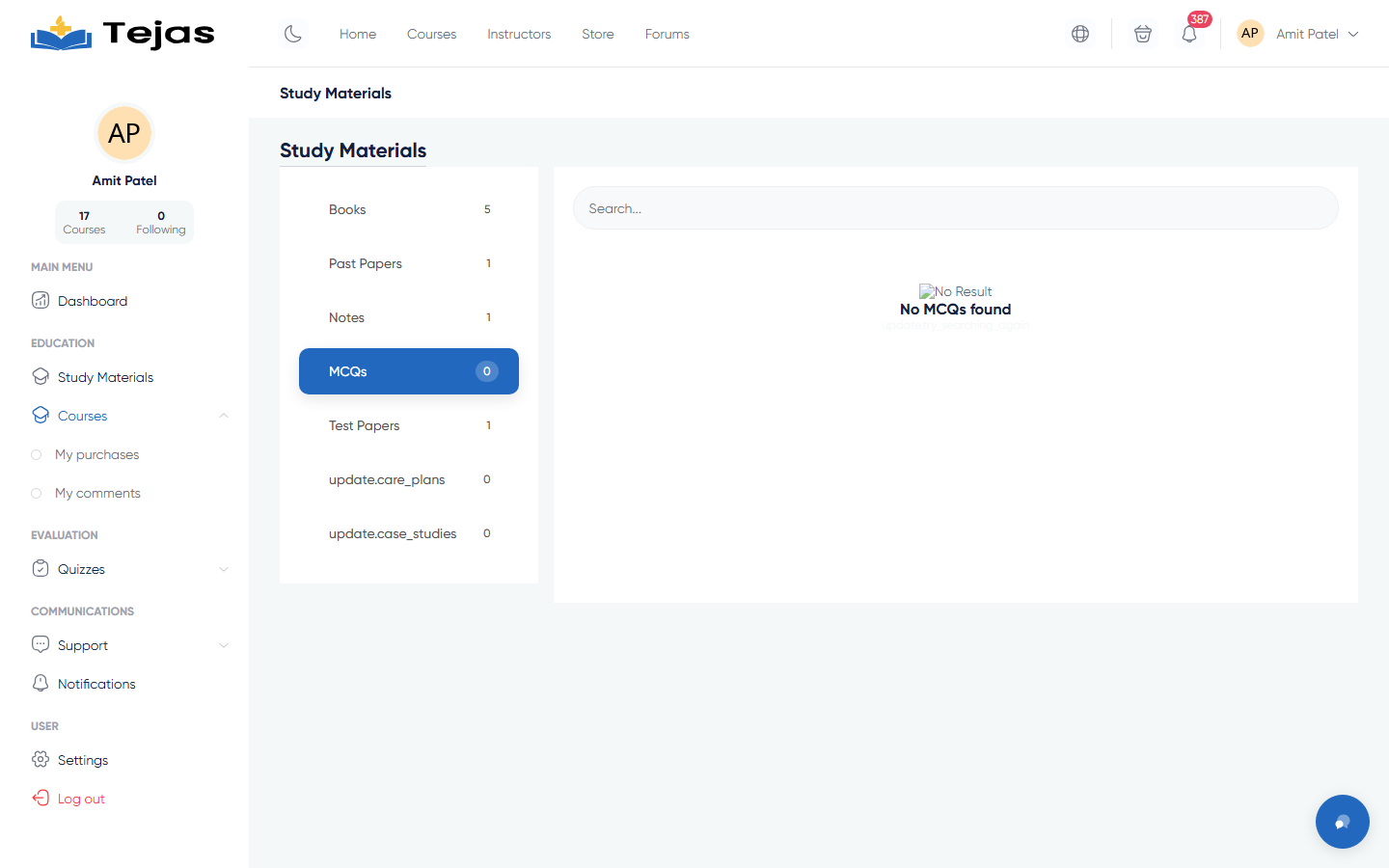
5. Open MCQ Practice Files (question banks)
Instructors can also attach MCQ files with answer keys as study materials — these are documents, not interactive quizzes:
- Sidebar → Courses → My Purchases.
- Click the course card's Notes button (or open the course and choose Course Tools → Study Materials).
- Click the MCQs tab on the left.
- Click a file's View to open the questions, and Solution for the answer key.