How to Create an AI Quiz and a Normal Quiz
Quizzes are attached to a course. You can generate one automatically with AI (one click) or build a normal quiz question by question.
Admin
Instructor
Organization
1. Create an AI Quiz — Instructor / Organization
- Log in → click your avatar (top-right) → Dashboard.
- Sidebar: Courses → My Courses, open your course for editing.
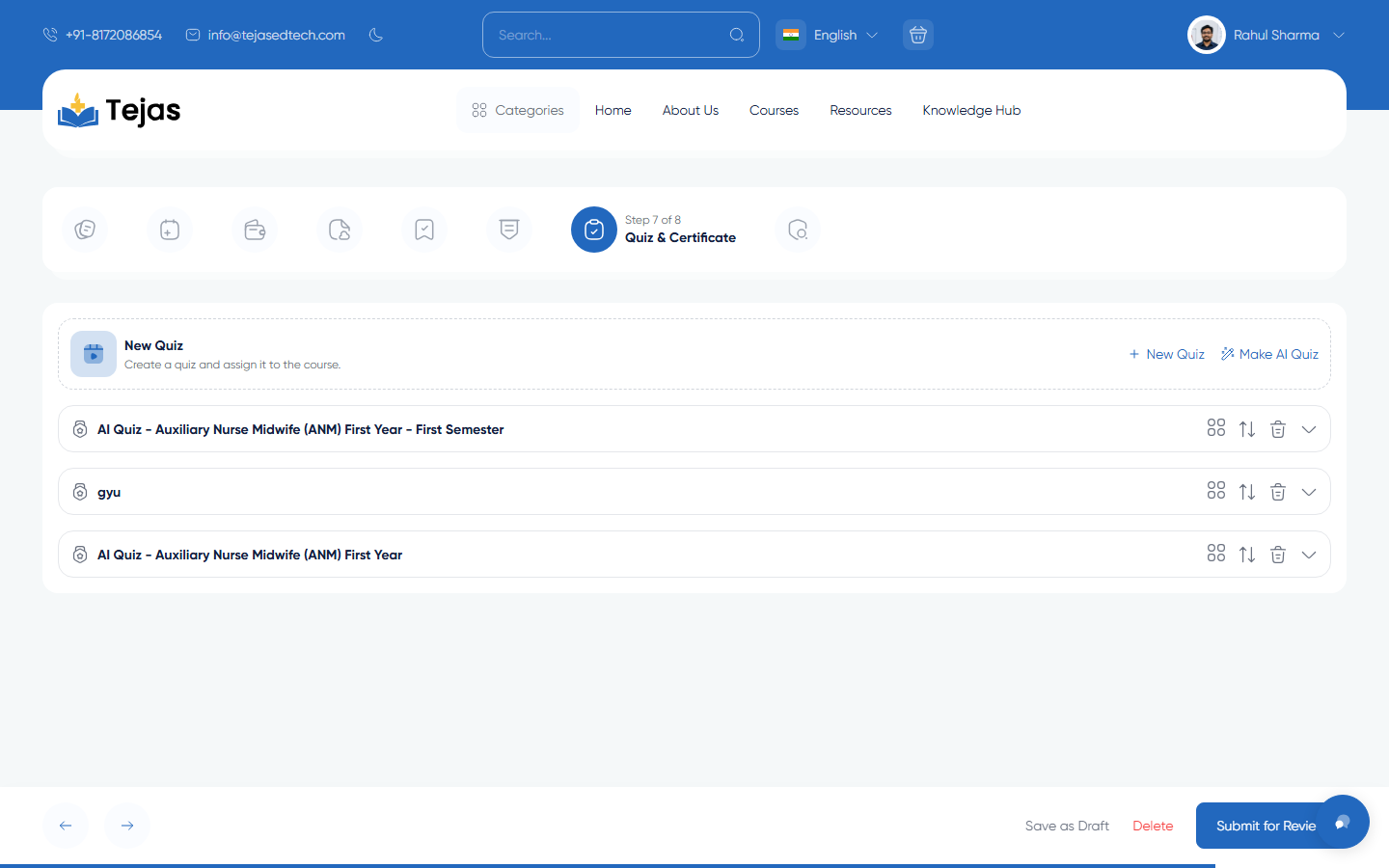
- Move to Step 7 of 8 — "Quiz & Certificate" using the step icons at the top.
- Click "Make AI Quiz" (magic-pen icon, top-right of the New Quiz card).
- Wait for the loading bar — a popup confirms "AI Quiz Generated Successfully!" and the page reloads.
- The new quiz appears in the list below, named "AI Quiz – {course title}": 5 multiple-choice questions, 20 marks each, pass mark 60, unlimited time and attempts.
- To adjust it, go to sidebar Quizzes → List, click Edit on the quiz, and change anything (questions, pass mark, certificate…).
2. Create an AI Quiz — Admin
- Log in to /admin.
- Sidebar: Education → Classes → Courses → Edit on the course.
- Scroll to the Quiz & Certificate section.
- Click "Make AI Quiz" and wait for the confirmation popup — same result as the panel version.
3. Create a Normal Quiz — Step by Step
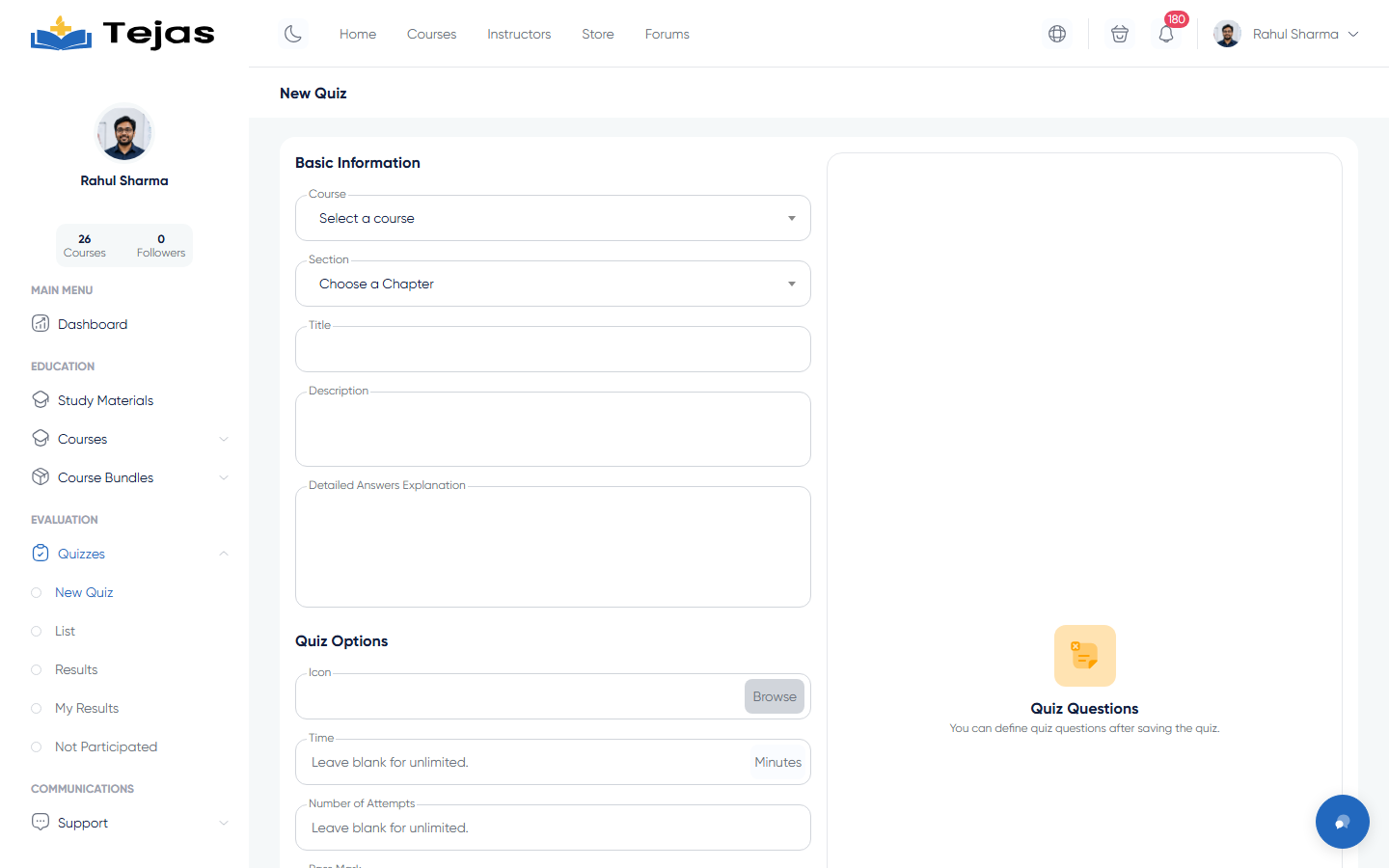
- In the panel sidebar click Quizzes → New Quiz. (Admins: Education → Quizzes → New Quiz.)
- In Basic Information, pick the Course, optionally a Section/Chapter, and type the Title and Description.
- In Quiz Options set:
- Time in minutes — leave blank for unlimited
- Number of Attempts — leave blank for unlimited
- Pass Mark — e.g. 60
- Expiry Days — days after purchase until the quiz expires (optional)
- Toggles: Limit Displayed Questions, Display Questions Randomly, Certificate Included, Active Quiz, Quiz of the Day
- Click Save — the Questions panel becomes active only after saving.
4. Add Questions
Multiple-choice question:
- In the right-hand Questions panel click + Add Multiple Choice.
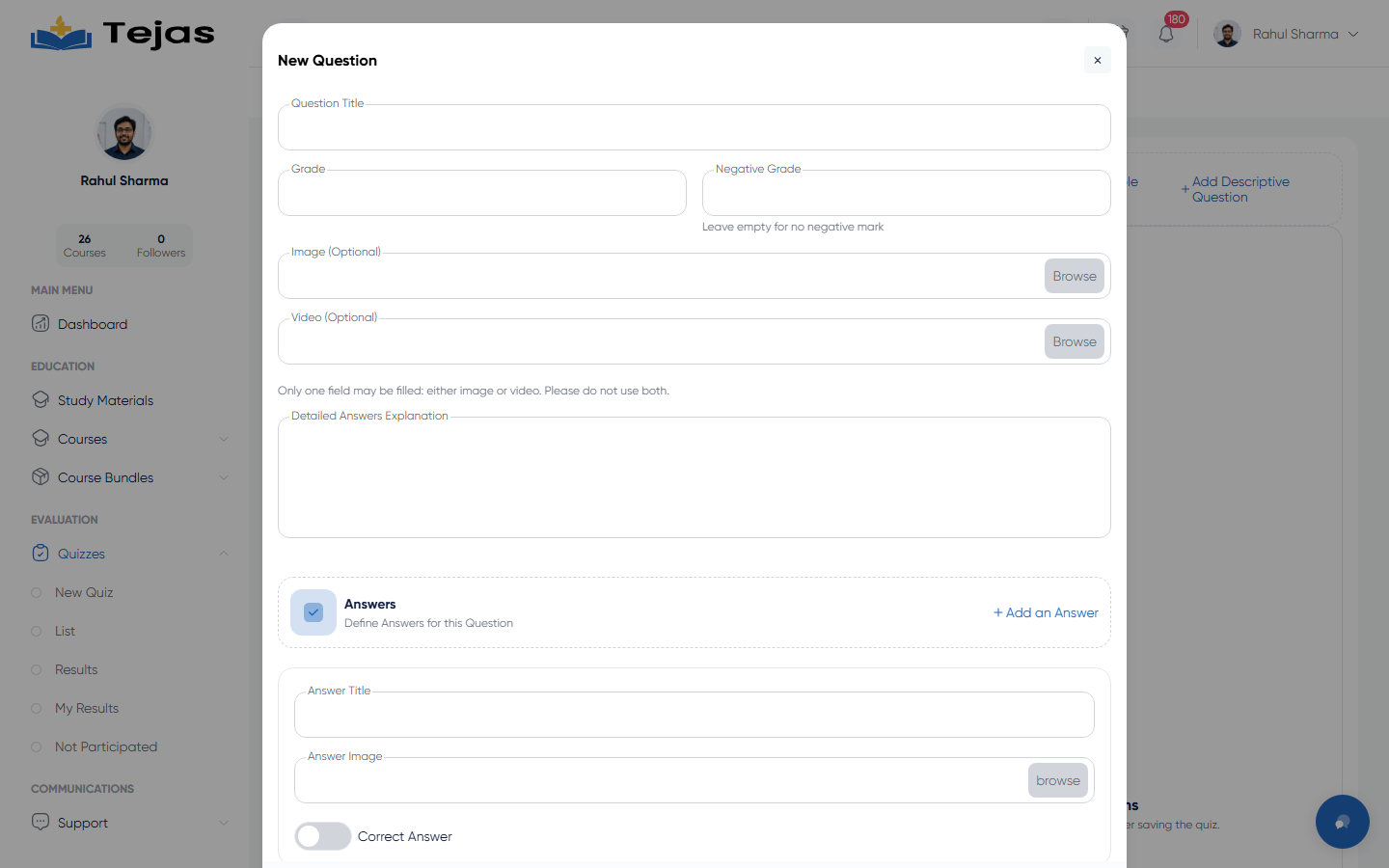
- Type the Question Title and its Grade (and a Negative Grade for wrong answers, if wanted).
- Optionally attach an Image or a Video (not both).
- Click + Add an Answer for each option and type the answer text.
- Turn on the Correct Answer switch on the right option.
- Click Save.
Descriptive (written) question:
- Click + Add Descriptive Question.
- Fill the Question Title, Grade, and the model Correct Answer text, then Save. Students' written answers wait for your manual grading under Quizzes → Results.
Drag questions to re-order them; use each row's menu to Edit or Delete.
5. Review Results and Grade Written Answers
- Sidebar → Quizzes → Results.
- Click a result row → Details to see every answer.
- For quizzes with descriptive questions, open the pending result and enter grades — the student's status updates from Waiting to Passed/Failed.
Certificates: switch on "Certificate Included" so students who reach the pass mark can download a certificate. Certificate templates are designed by the admin under Admin → Certificates → Templates.