Store: Buying Books & Products, Tracking Orders
The Store sells physical products (printed books, equipment) and virtual products (downloadable files). Checkout works like course checkout, plus a shipping step for physical items.
Student
1. Find and Order a Product
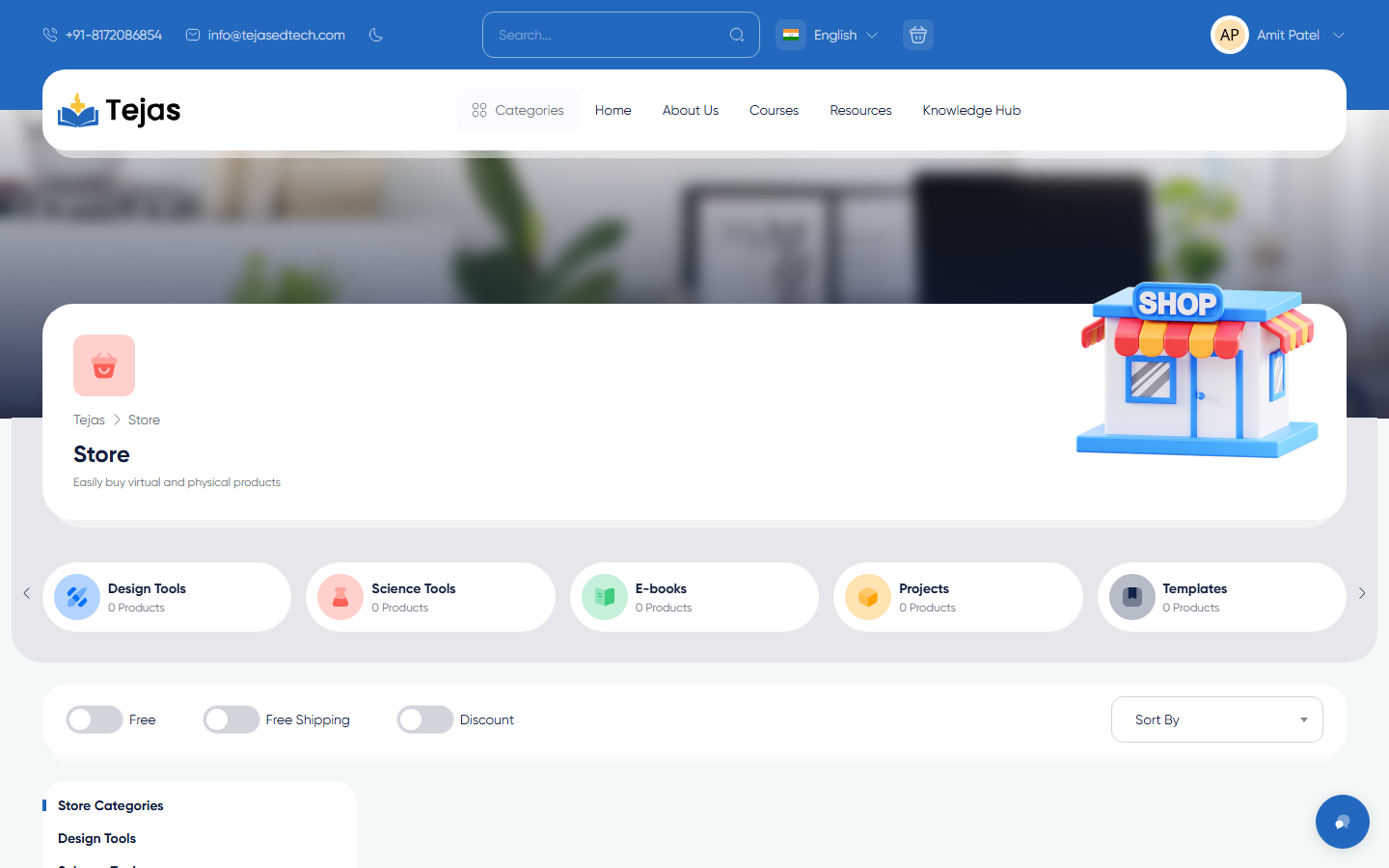
- Click Store in the main menu (/products) and browse by category or filters.
- Open a product page, set the Quantity with the ± stepper (a warning shows when stock is low), and click Add to cart.
- Open the Cart. For physical products a Shipping and Delivery block appears — fill Country / State / City / District, your Address, and an optional Message to seller. The Order Summary shows the Delivery fee and estimated delivery time.
- Click Checkout, choose a payment gateway, and pay — same as course checkout.
2. Track Your Order
- Avatar → Dashboard → sidebar Store → My Purchases (/panel/store/purchases).
- The Purchases history table shows each order's Seller, Order ID, amounts, Status and Date; filter by date, seller, order ID or status.
- Use the row actions to view the Tracking code, Track shipping, check the delivery Address, or open the Invoice.
- When your parcel arrives, click "I got the parcel" and confirm — this completes the order.
3. Download Virtual Products
- Virtual products skip shipping entirely.
- After payment, open Store → My Purchases, click the order's Files action, and download each file.
Note: the store list is empty until products are published. Sellers manage their catalogue under Store → New Product (5-step wizard) and enter shipment tracking codes under Store → Sales; new products need admin approval before they appear.