Instructor Earnings: Sales, Balance & Payouts
Your income from course sales accumulates in your account; when it passes the minimum payout amount you can request a payout to your bank account.
Instructor
Organization
Note: the Financial menu is currently hidden from the panel sidebar, so open these pages by direct URL (bookmark them): /panel/financial/sales, /panel/financial/summary, /panel/financial/account, /panel/financial/payout.
1. Check Your Sales
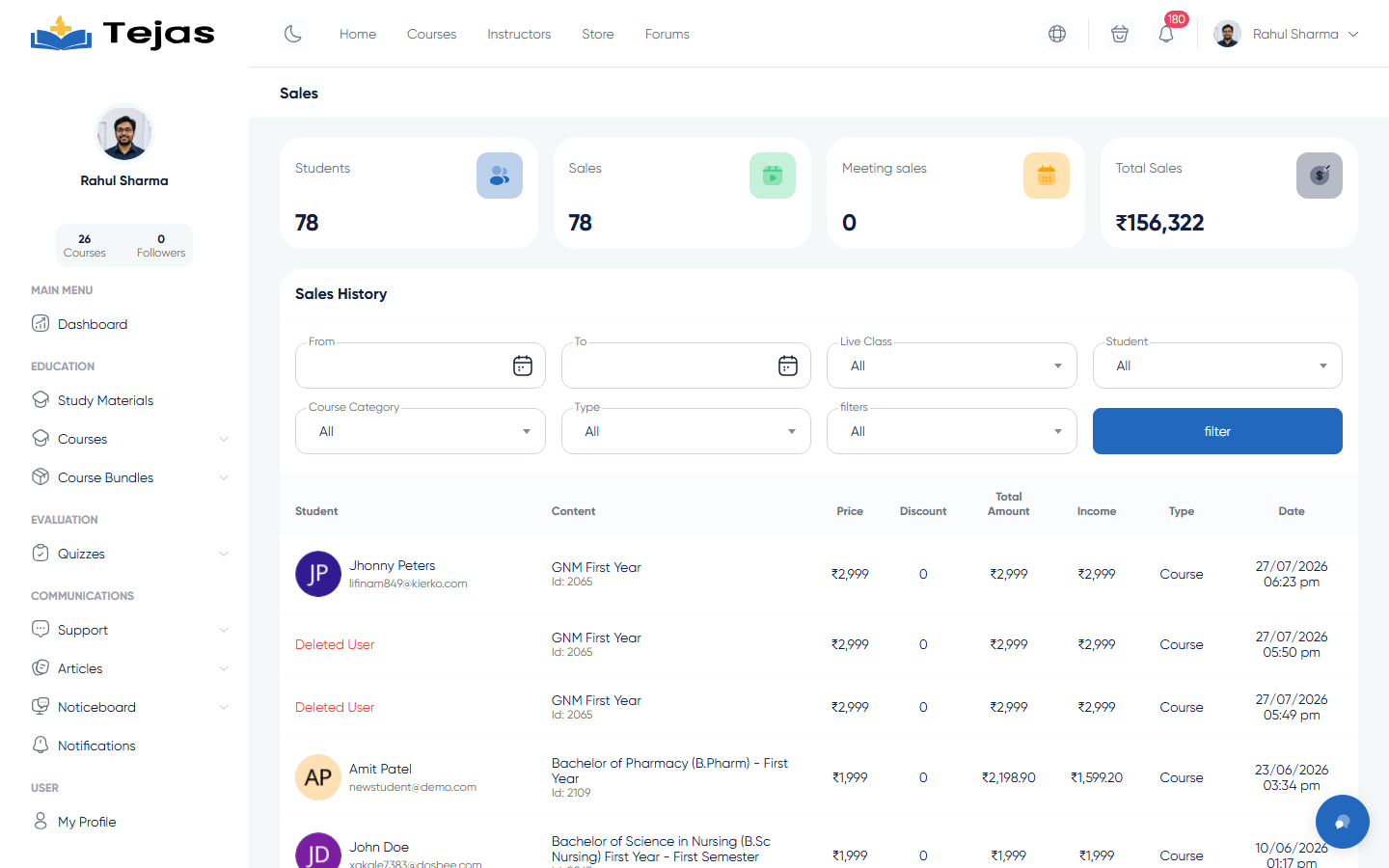
- Log in → avatar → Dashboard, then open /panel/financial/sales (also reachable from the dashboard's sales shortcut icon).
- The top stats show Students, Content sales, Meeting sales, Total sales.
- The Sales History table lists each sale with Price, Discount, Total Amount and — most importantly — Income: your net share after the platform commission.
- Filter by date range, course, student, category or type, then click Filter.
2. Set Up Your Payout Account (once)
- Go to Settings (sidebar) → tab Identity and Financial (/panel/setting/step/financial).
- Under Payout account, choose your bank in Select account type and fill in the bank's fields (account number, holder name, etc.).
- Upload your Identity documents (identity scan + certificates).
- Click Save settings. The admin must approve your financial information; until then the payout page shows "awaiting admin approval". Once approved, the fields lock.
3. Request a Payout
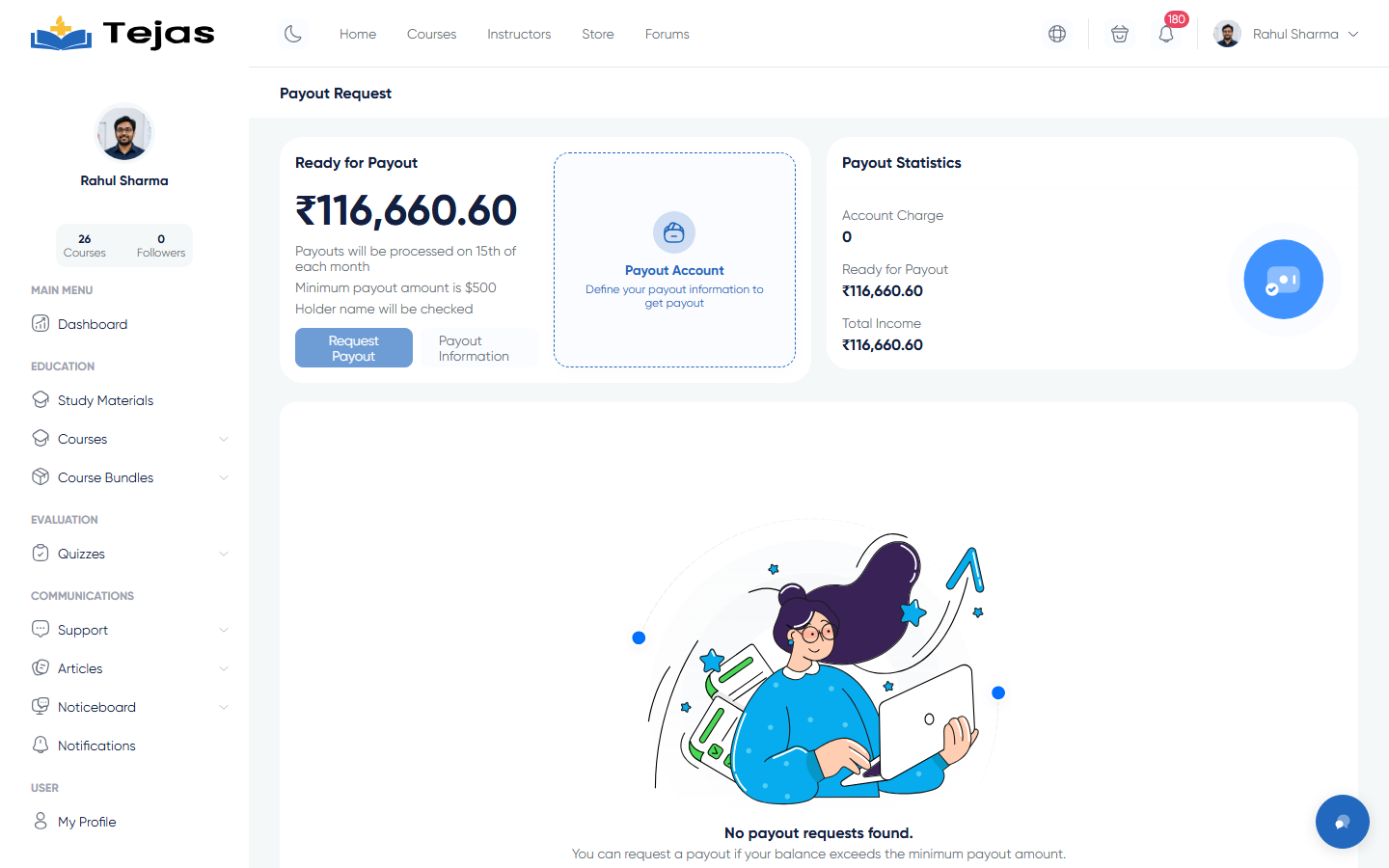
- Open /panel/financial/payout — the Payout Request page shows your Account Charge, Ready for Payout and Total Income, plus the payout policy (processing date and minimum amount).
- Click Request Payout.
- The request is created with status Waiting and the admin is notified. It's rejected up-front if your balance is under the minimum, your financial info isn't approved yet, or no bank account is saved.
- Track past requests in the Payout history table (Account, Type, Amount, Status) — click a row for details.
4. See Every Transaction
- Open /panel/financial/summary — the Financial Summary lists all account transactions (income, payouts, charges).
How income is calculated: the platform deducts a commission per sale (set by the admin — per instructor, per user group, or the system default). Your net appears in the Income column of the Sales Report.