Forums / Knowledge Hub
The Knowledge Hub is a community discussion space: browse forums, ask questions, reply, bookmark topics, and earn reward points for participating.
Student
Instructor
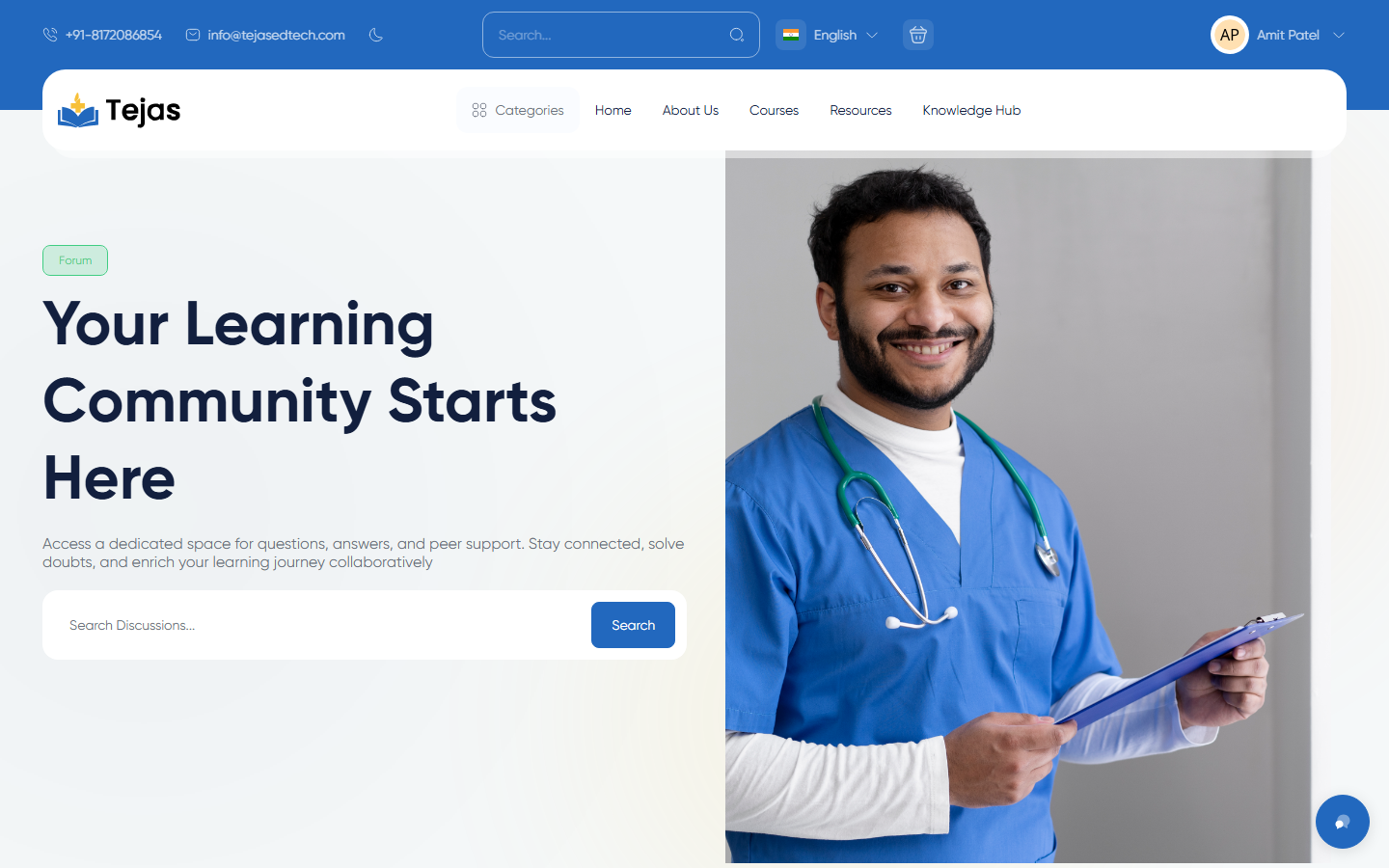
1. Browse and Search Discussions
- Click Knowledge Hub in the main menu (/forums).
- Scroll through the forum sections, featured topics and recommended topics — or type in the "Search Discussions" box and click Search.
- Click a forum to list its topics, then a topic to read its posts.
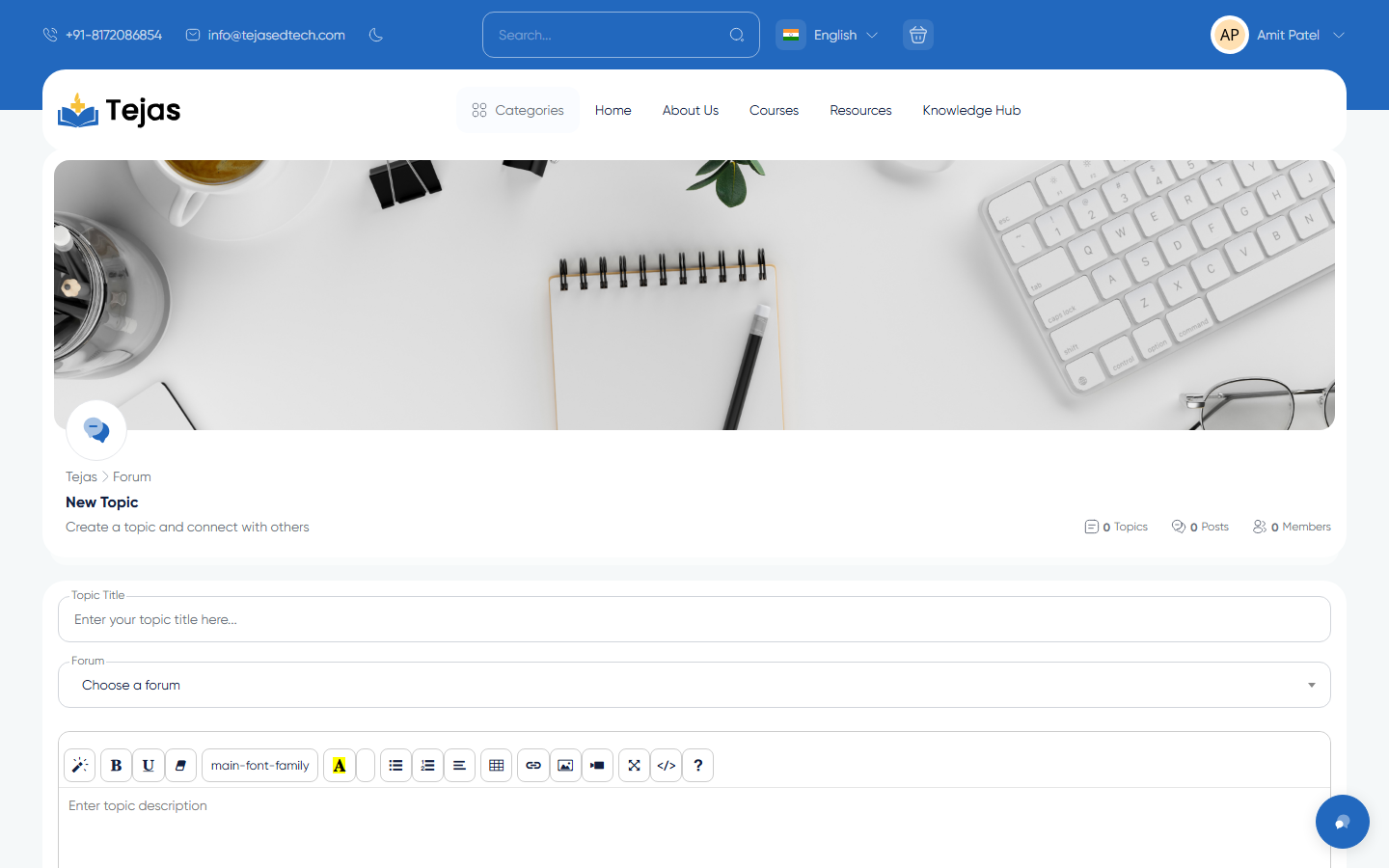
2. Create a Topic
- Log in first (the form redirects to login otherwise), then click Create new topic (or open /forums/create-topic).
- Fill in: Topic title, the Forum it belongs to, and your question/description in the editor.
- Optionally add a Forum cover image and file Attachments.
- Read the Forum terms notice and click Publish topic. You earn reward points, and your topic is live immediately.
3. Reply, Like & Bookmark
- Open a topic and scroll to Reply to this topic; write your answer (attachment optional) and click Submit reply — replies publish immediately.
- Use the quote action on a post to reply to that specific message.
- Click the like icon on topics/posts, and the bookmark icon to save a topic for later.
- Find your activity in the panel sidebar under Forums: My Topics, My Posts, and Bookmarks.
- See something inappropriate? Use Report on the post to flag it to the moderators.
Course Q&A is separate: each course can have its own forum on the learning page ("Have a question?" button). There, the asker or instructor can also mark a question as resolved — that option exists only in course forums, not in the public Knowledge Hub.