How Students Find Courses
Four ways to discover courses — pick the path that matches how you search.
Student
Path A — Browse the Full Catalogue
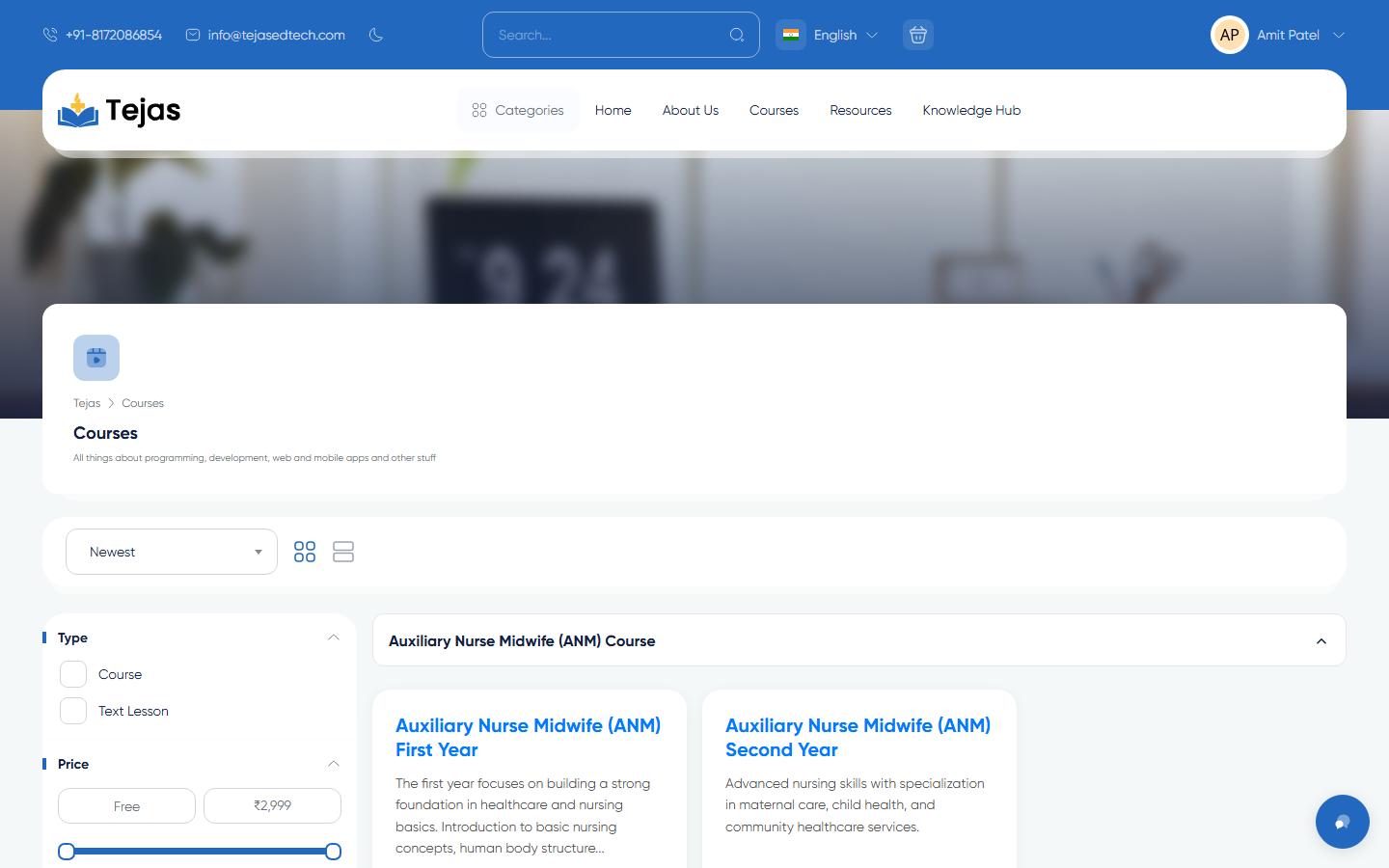
- Click Courses in the main menu (top of any page).
- Use the left sidebar filters: course type, category options, the price slider, and toggles like Free, Discounted, Upcoming.
- Pick a Sort order (e.g. Newest) in the top bar — results refresh instantly.
- Click a course card to open its page: description, content, instructor, reviews, price.
- Click Enroll / Add to Cart to purchase. The course then appears in your panel under Courses → My Purchases.
Path B — Browse by Program / Category
- Click the Categories button at the left end of the main menu.
- Hover your program group (e.g. GNM, BSc Nursing, Pharmacy) and click a year/semester entry.
- The category page opens with the same filters, scoped to that program — continue as in Path A.
Path C — Search by Name
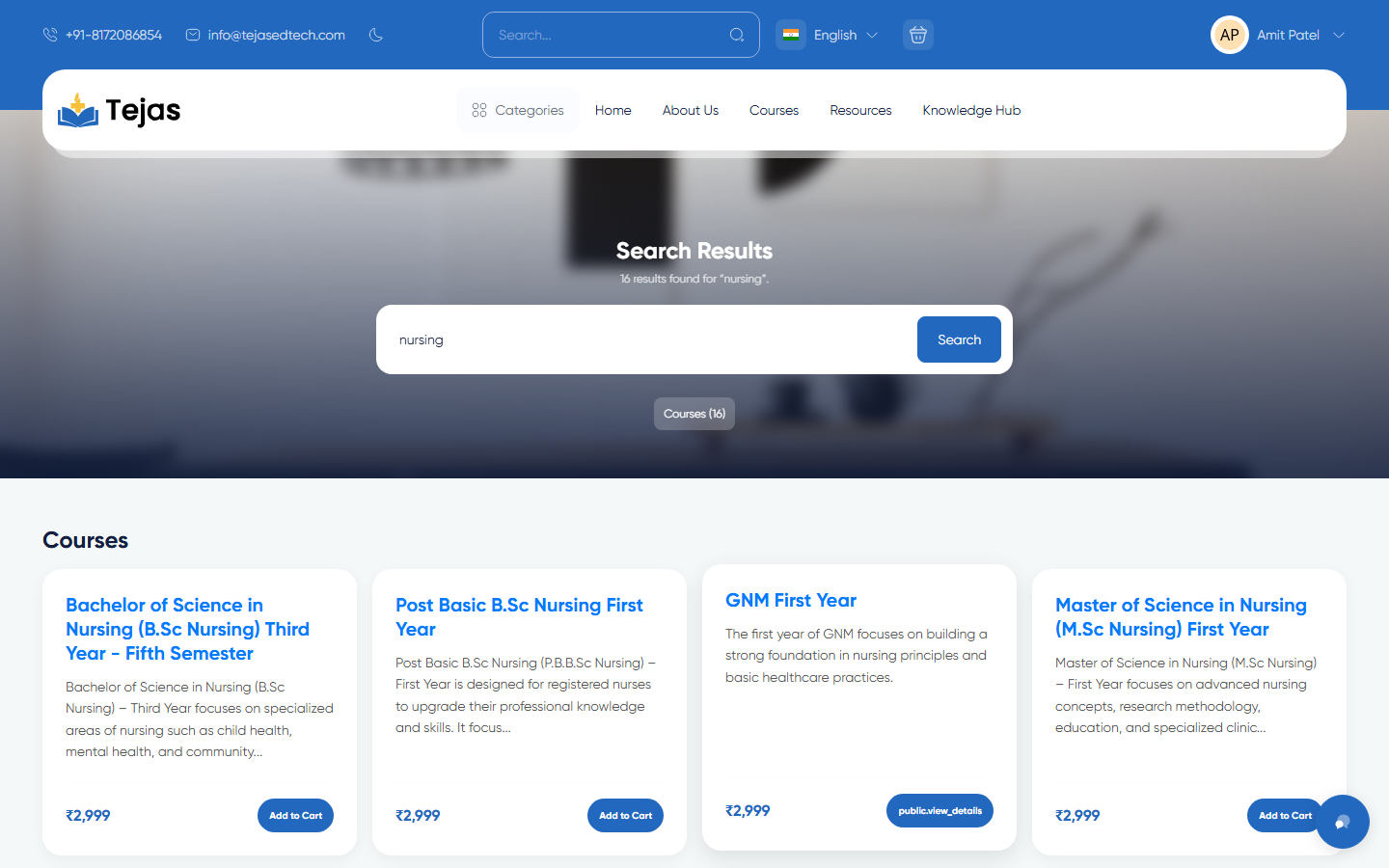
- Click the search bar at the very top of the page ("Search...").
- Type at least 3 characters (e.g. "nursing") and press Enter.
- The results page shows matching courses plus bundles, store products, instructors and articles — click any card to open it.
Path D — Find Learning Resources (Quick Search)
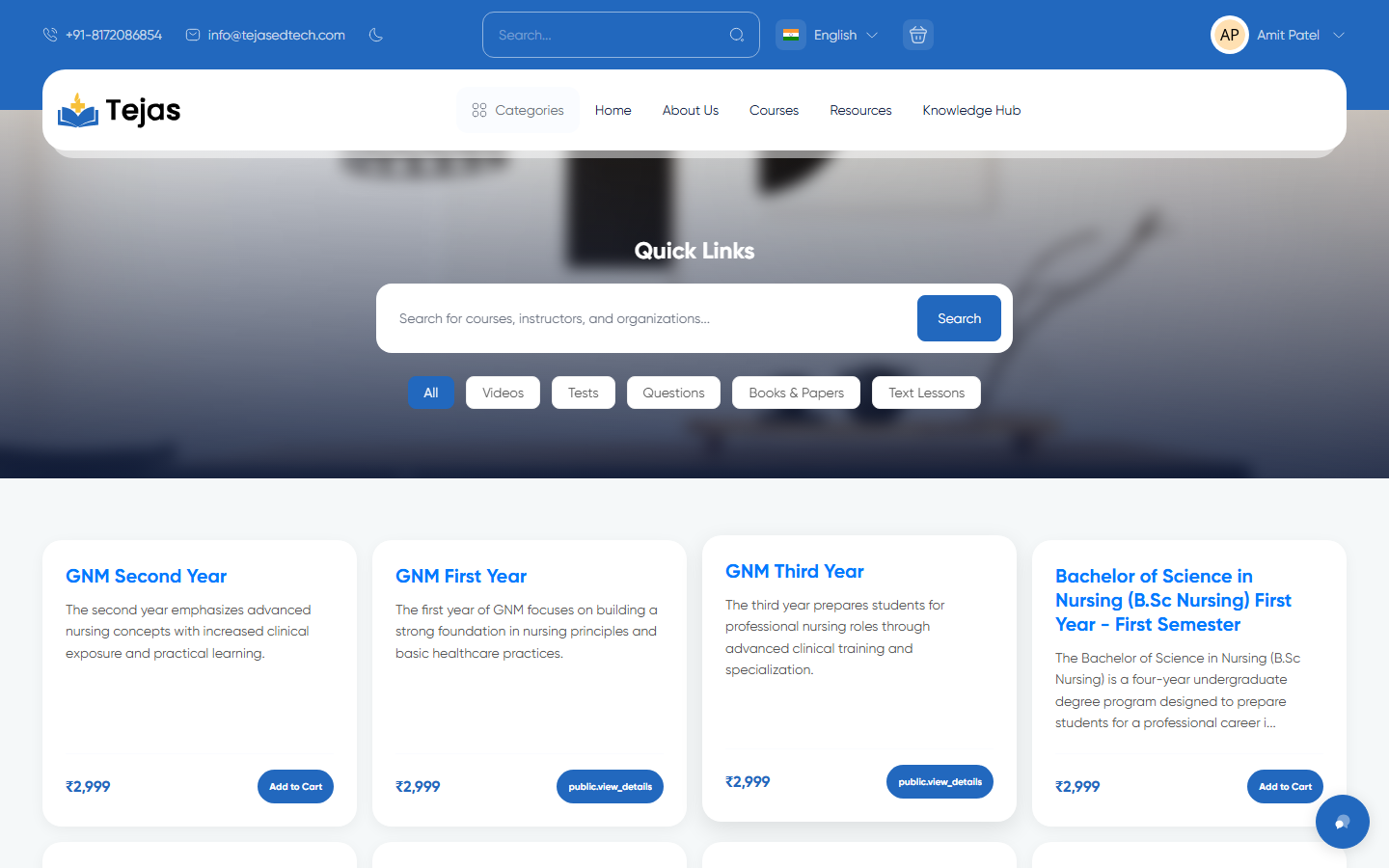
- Click Resources in the main menu — the Quick Search page opens.
- Pick a type chip: videos, tests, questions, books & papers, past papers, or text lessons.
- Type your topic in the search box; matching resources link back to their courses.
After purchase: avatar → Dashboard → Courses → My Purchases → Continue opens the learning page with your lessons, study materials and quizzes, and tracks your progress.