Noticeboards & Course Notices
Instructors and organizations can post announcements to their students — either a general notice or a colored course notice pinned to a course's learning page.
Instructor
Organization
1. Post a General Notice
- Log in → avatar → Dashboard → sidebar Noticeboard → New.
- Fill the Notice content card: Title, Type (All students or Course students), and — when you pick Course students — the Course dropdown.
- Write the Message in the rich-text editor.
- Click Post notice. Students see it in their panel Notifications.
2. Post a Course Notice (shows on the learning page)
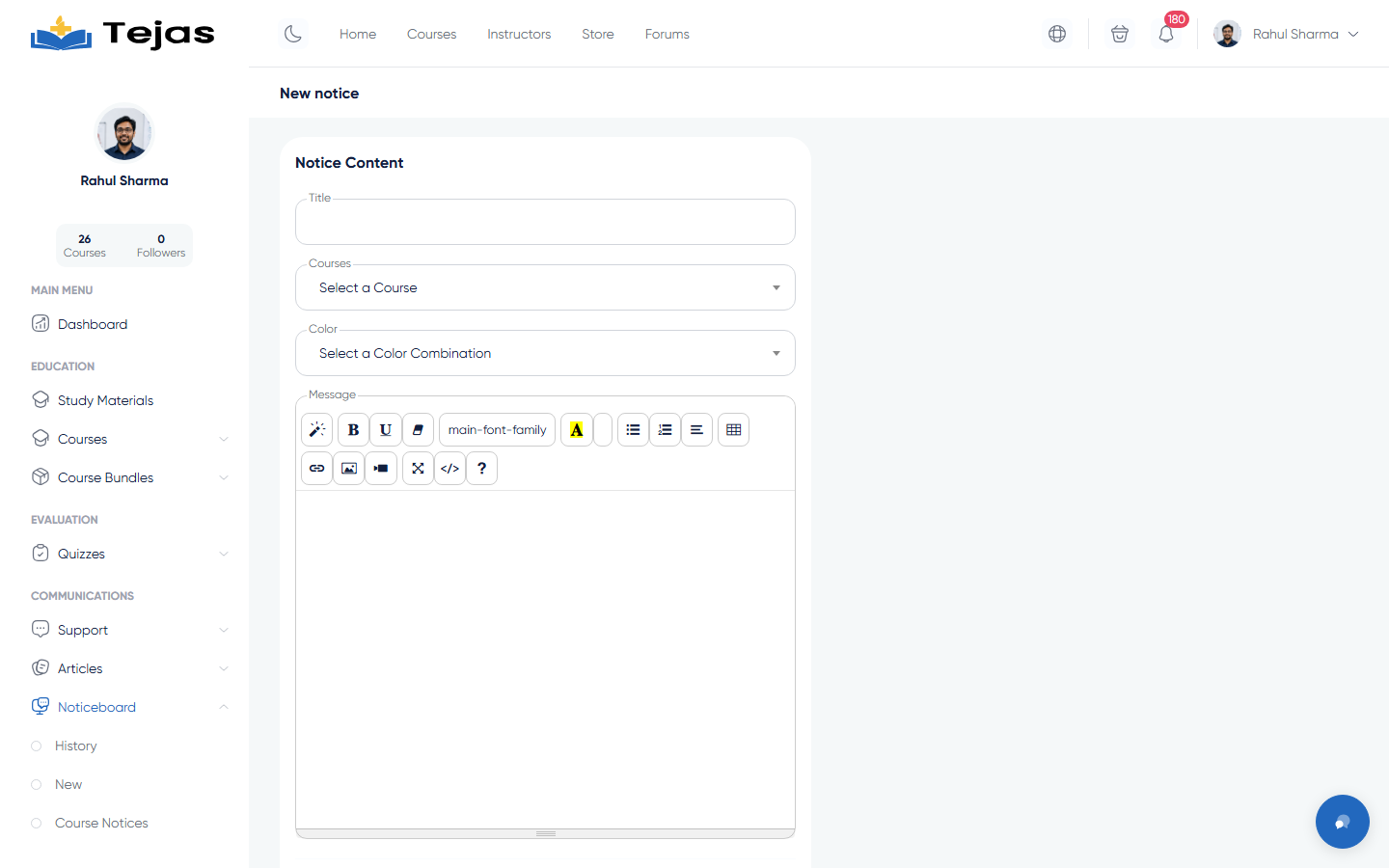
- Sidebar → Noticeboard → New Course Notice.
- Fill in: Title, Course (required), Color (the notice banner color), and the Message.
- Click Post notice — every enrolled student is notified, and the notice appears on that course's learning page noticeboard.
3. Manage Past Notices
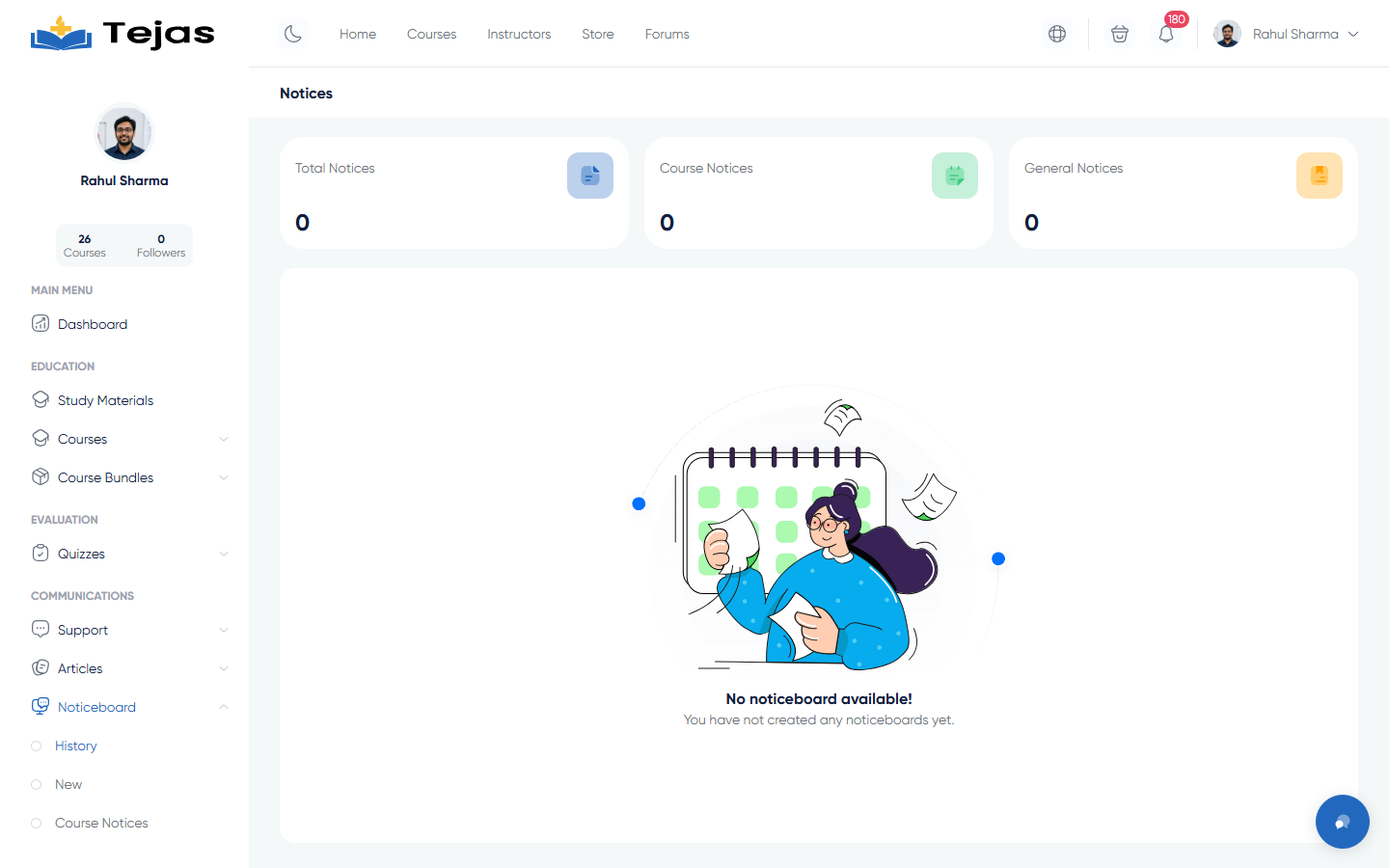
- Sidebar → Noticeboard → History — stats for total / course / general notices, with filters by date, course, student and type.
- Use each row's actions to Edit, Delete, or toggle a notice's status.
- Course notices are listed separately under Noticeboard → Course Notices.
Where students see notices: general notices arrive in Panel → Notifications (bell icon); course notices also appear on the course learning page noticeboard in the chosen color.