Certificates: Earning, Downloading & Validating
There are two certificate types: quiz certificates (pass a quiz that includes one) and course completion certificates (finish 100% of a course that includes one). Anyone can verify a certificate's authenticity on the public validation page.
Student
Instructor
1. Earn a Quiz Certificate
- Take a quiz whose overview shows the "Includes certificate" badge (sidebar Quizzes → Not Participated → Start).
- Score at or above the pass mark.
- On the result page you'll see "You achieved a certificate for passing this quiz" — click Download certificate.
2. Earn a Course Completion Certificate
- Open your course from Courses → My Purchases → Continue.
- Complete every lesson until your progress reaches 100%.
- On the learning page open the sidebar Certificates tab — the Course completion certificate card now shows a Download button. (Before 100% it shows a hint that the certificate isn't achieved yet.)
Note: the course must have been created with the "Include certificate" option switched on by its instructor.
3. Find All Your Certificates Later
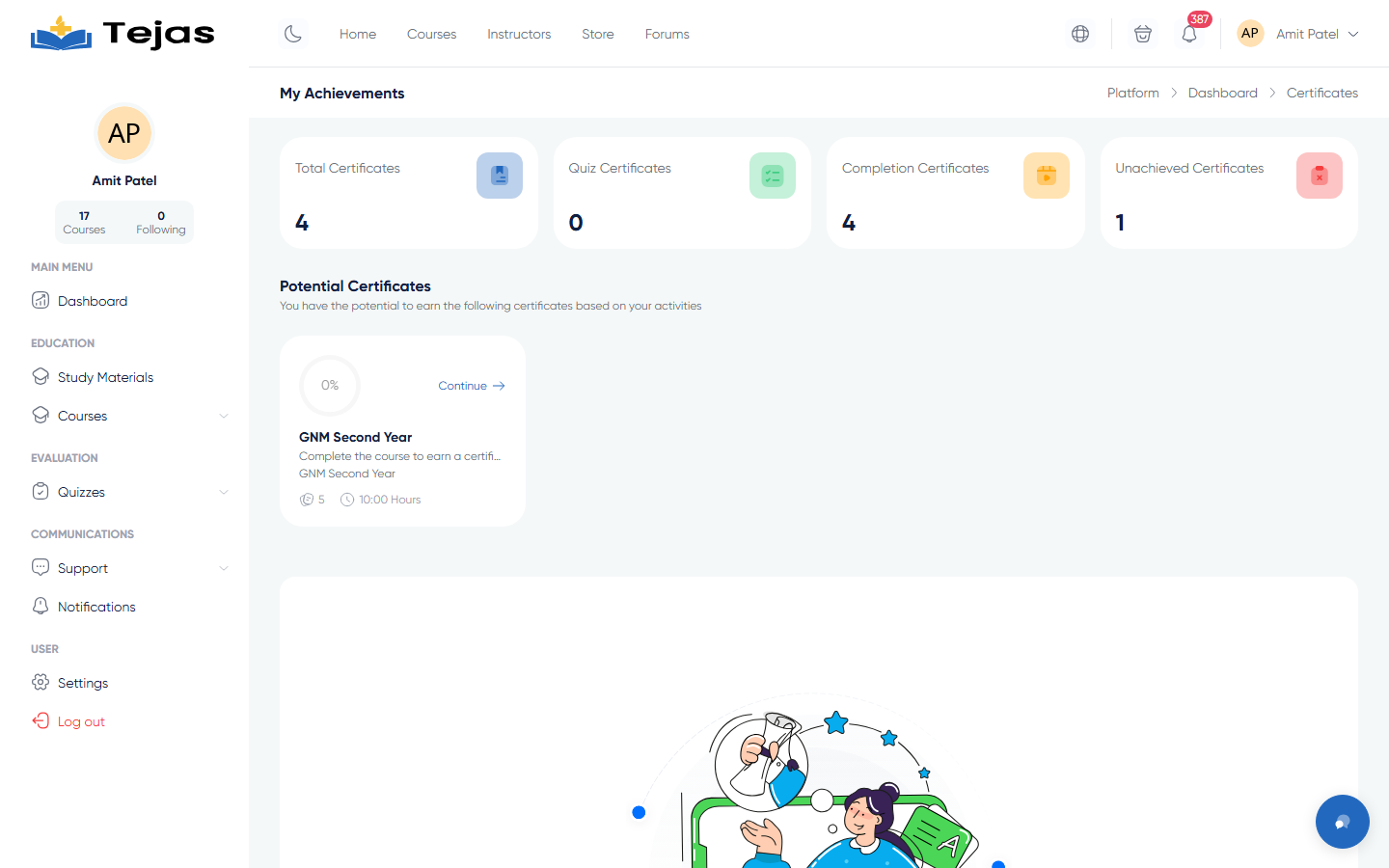
- Go to My Achievements: /panel/certificates/my-achievements (also linked from quiz result pages).
- Use the Quiz / Course switch to see each type, plus the stats at the top.
- Click Show on a certificate to download its PDF.
- The pending list shows certificates you can still earn — quizzes not yet passed and courses not yet completed, with any expiry countdown.
4. Validate Any Certificate (public)
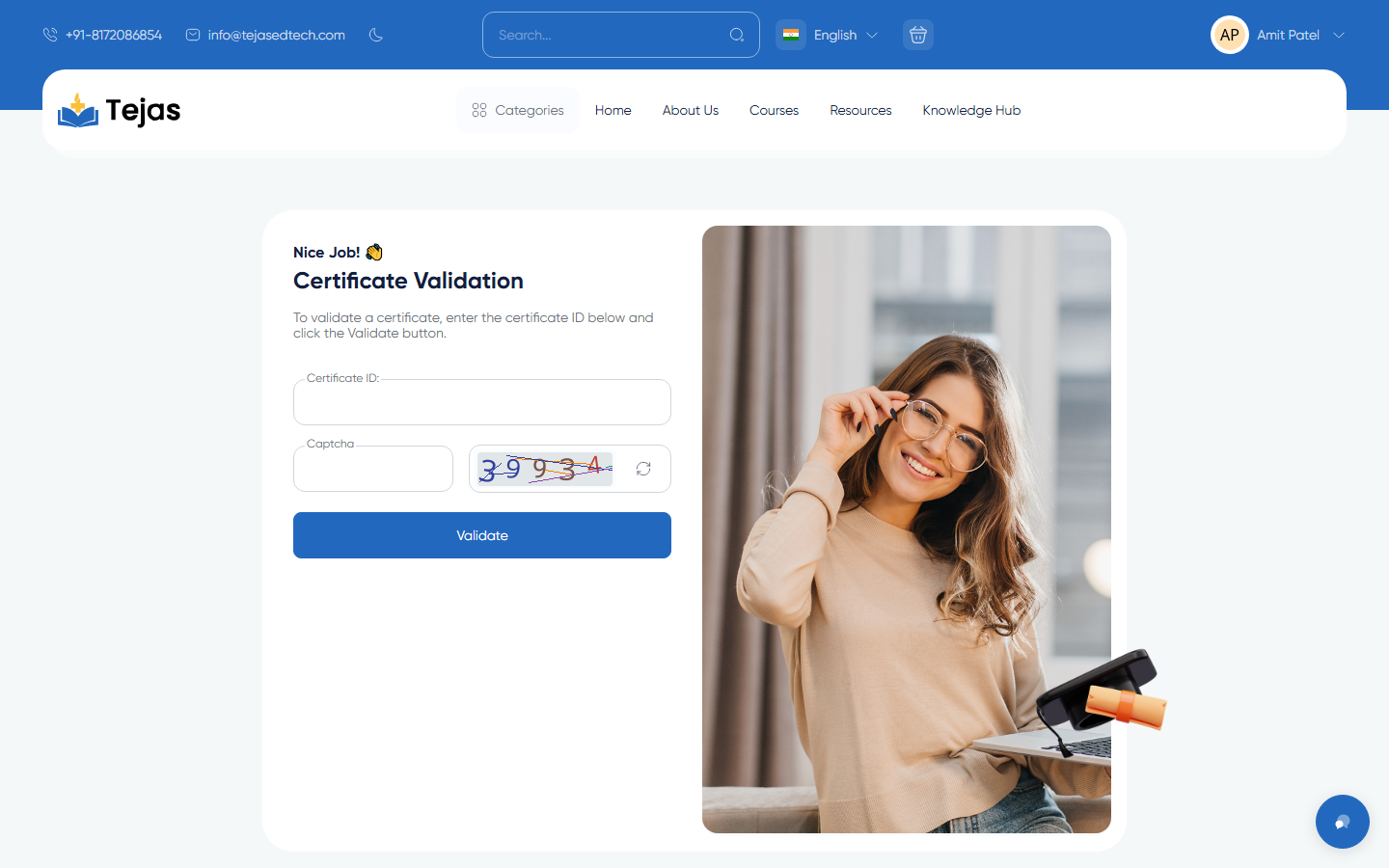
- Open /certificate_validation (no login needed).
- Enter the Certificate ID printed on the certificate and solve the captcha.
- Click Validate — a genuine ID displays the certificate with its holder and course/quiz title; an unknown ID shows a not-found state.
5. Instructor View of Issued Certificates
- Go to /panel/certificates — your quizzes/courses that issue certificates.
- Go to /panel/certificates/students — every certificate issued to your students; click through to download any student's PDF.
Note: the Certificates menu entry is currently disabled in the panel sidebar, so these pages are reached from quiz result pages, the learning page's Certificates tab, or by direct URL. Certificate design templates are managed by the admin under Admin → Certificates → Templates.