How Students Access Case Studies & Other Materials
Case Studies (and Care Plans) are types of study material attached to a course — just like Notes, Books and Past Papers. There is no separate case-study section; you reach them through the course's study materials. Two click-paths:
Student
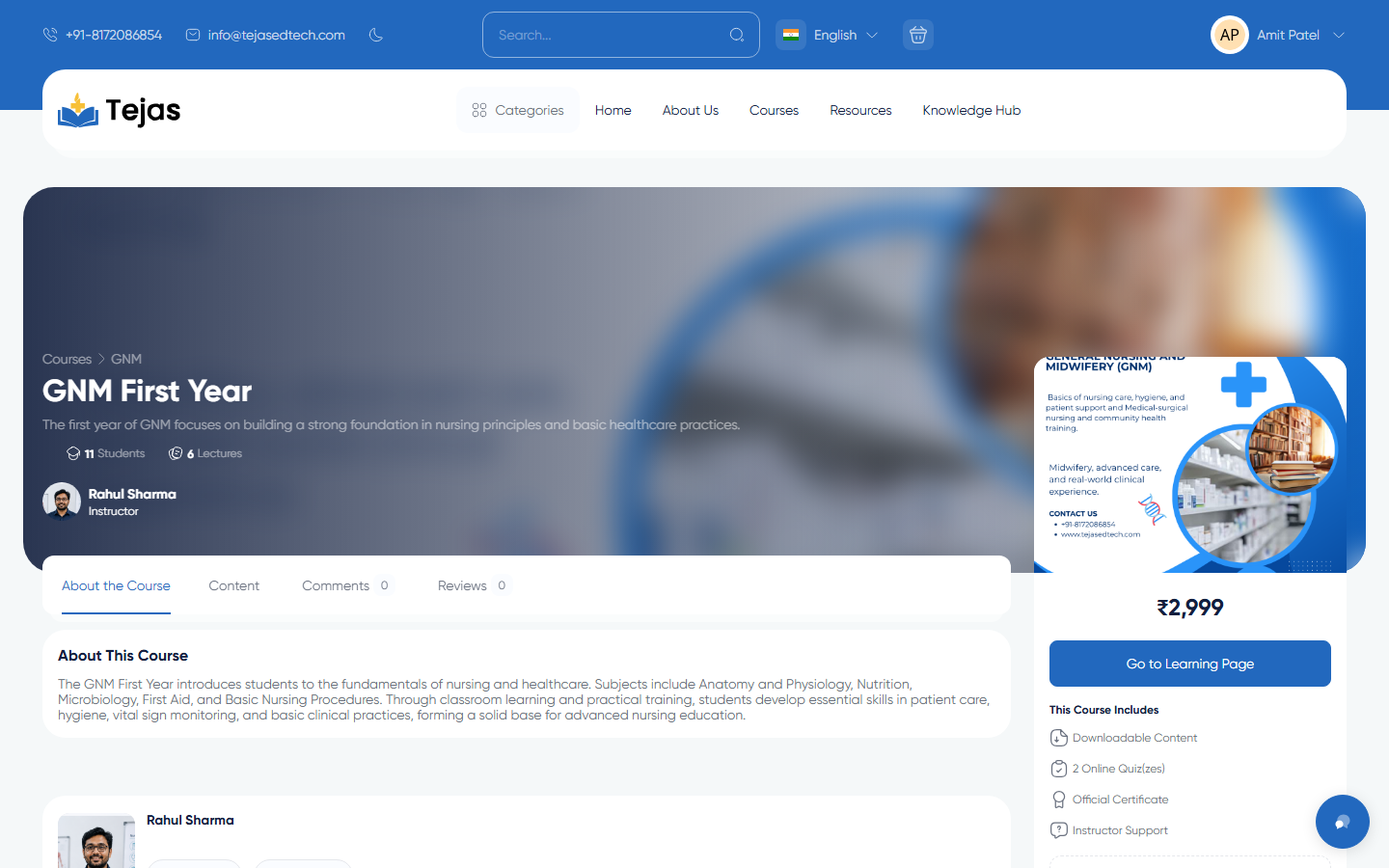
Path A — From the Course Page (before or after buying)
- Click Courses in the top menu and open your course (or find it via search).
- On the course page, click the Content tab.
- Scroll down to the Study Materials accordions.
- Expand the Case Studies (or Care Plans) group.
- Click View next to a case study — it opens as a PDF in a new browser tab. Click Solution if an answer key was provided.
Note: if you haven't purchased the course yet, the buttons show a padlock — buy/enroll first, then they unlock.
Path B — From Your Panel (enrolled students)
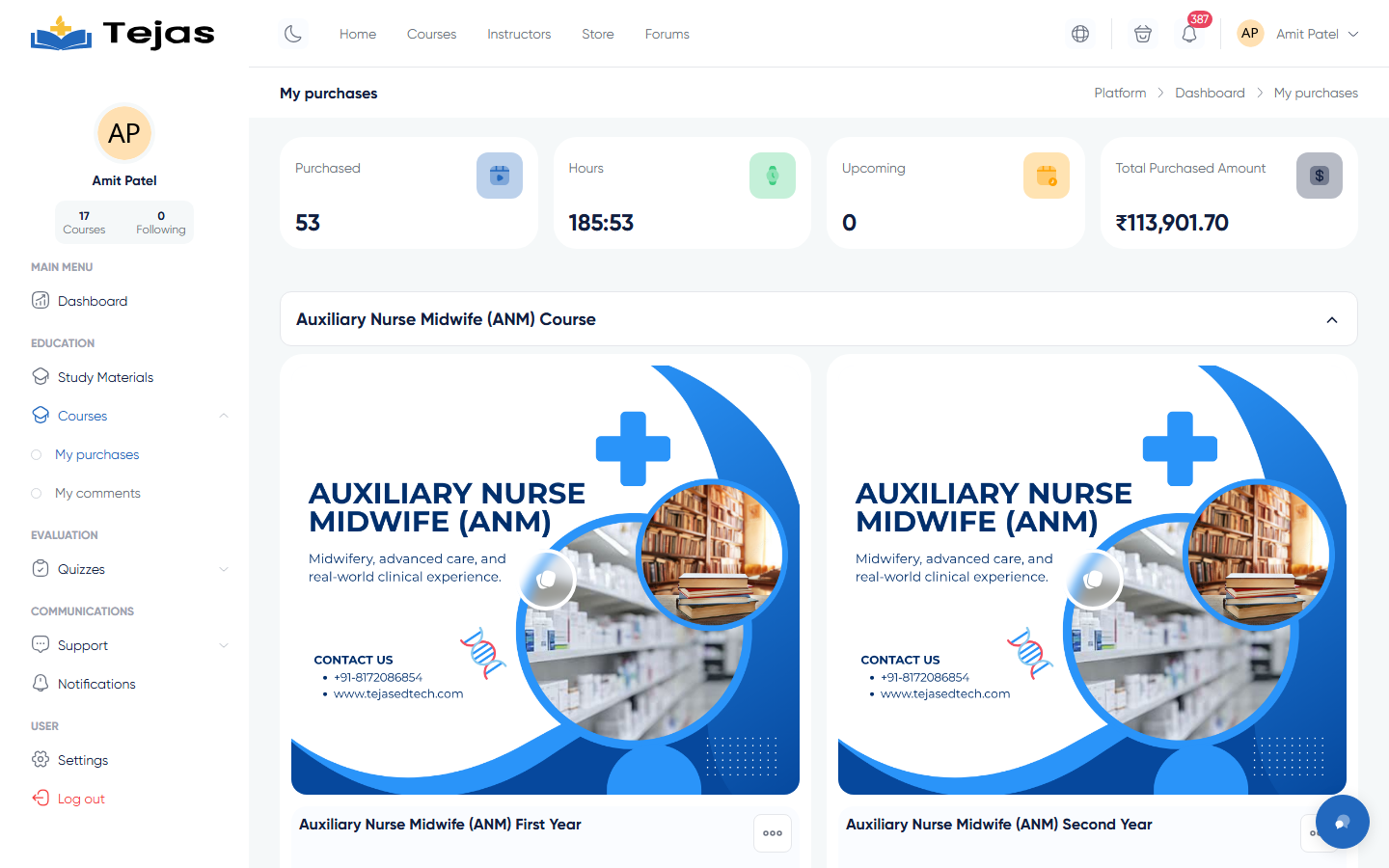
- Log in → click your avatar (top-right) → Dashboard.
- In the left sidebar click Courses → My Purchases.
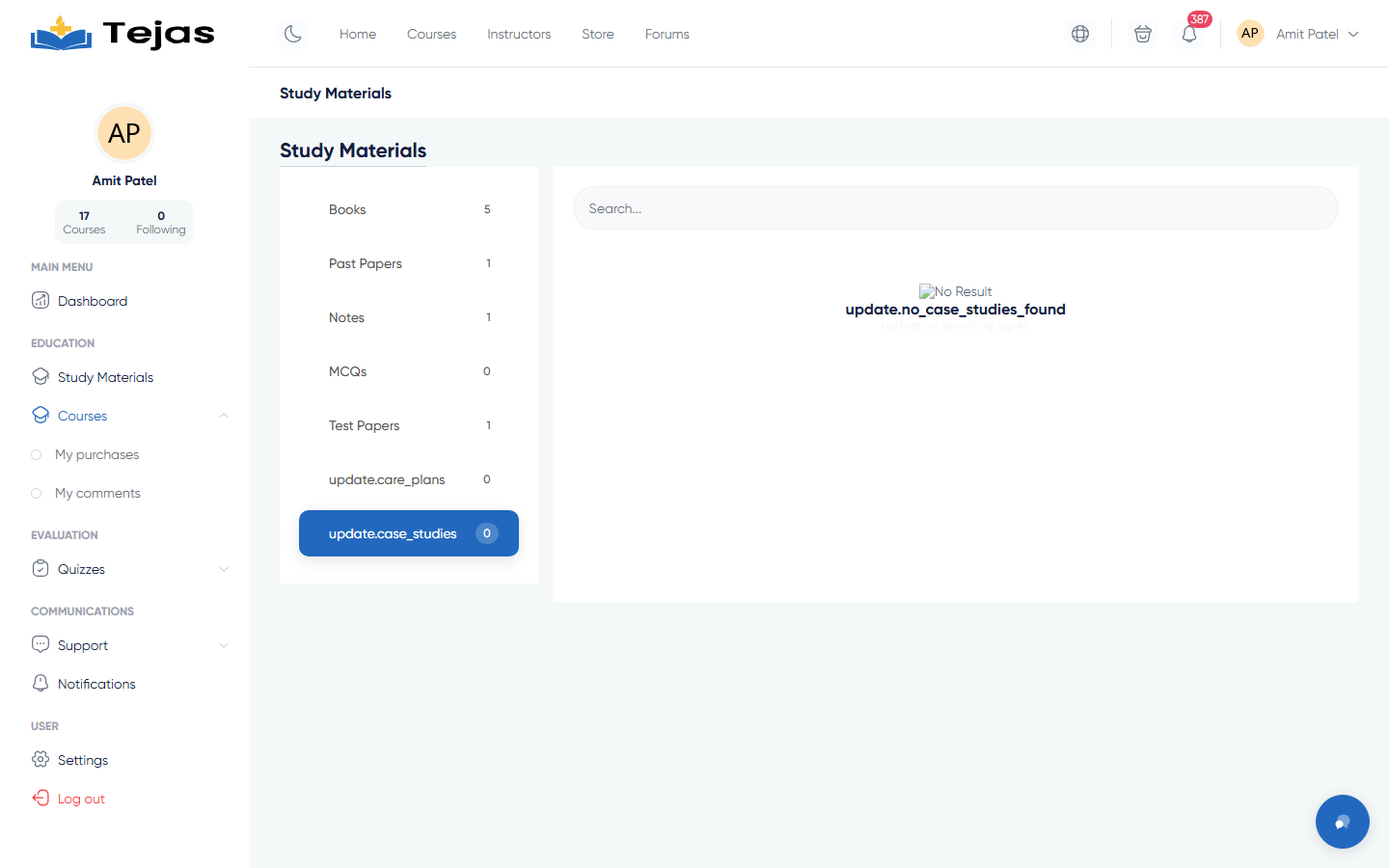
- On your course card click the Notes button (any of the quick buttons opens the same Study Materials page).
- On the Study Materials page, click the Case Studies tab in the left column.
- Materials are grouped by category — expand a group, use the search box if needed, and click a file to open it.
Path C — While Studying (learning page)
- Open your course from My Purchases → Continue (the learning page).
- Click the Course Tools dropdown in the top bar.
- Choose Study Materials — the same tabbed page opens; pick Case Studies.
Good to know: the public Study Materials catalogue shows only Books and Past Papers — Case Studies live inside each course.